
On Confluence and its suboptimal default margins, and tutorial to fix'em all
An angry solo developer forced to use cloud instances of Confluence fixes what teams at Atlassian cannot seem to be able to.
Rage-inducing Context
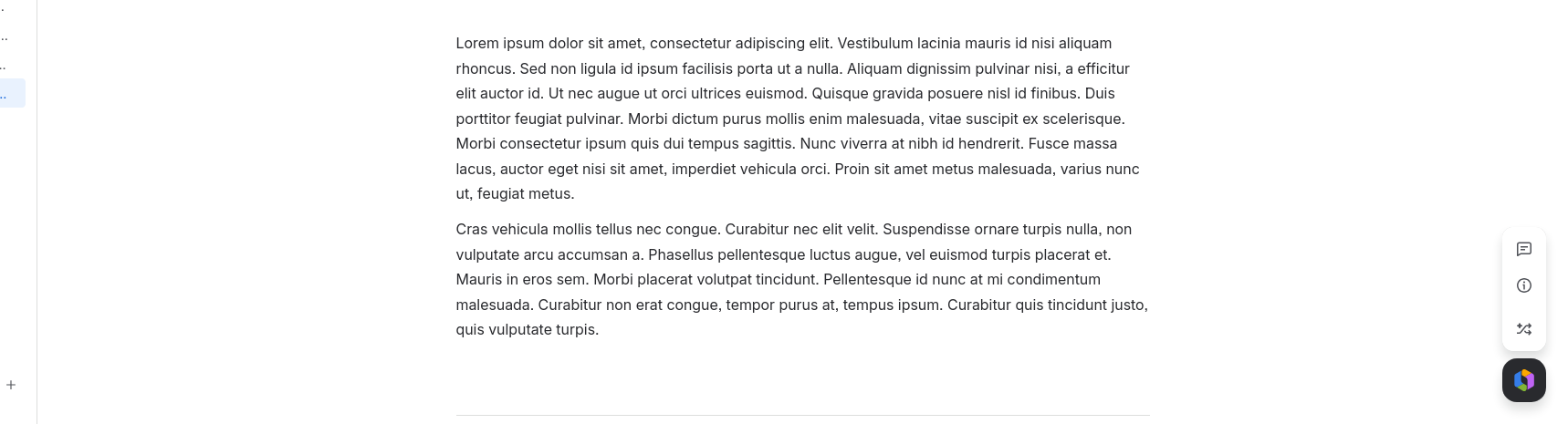
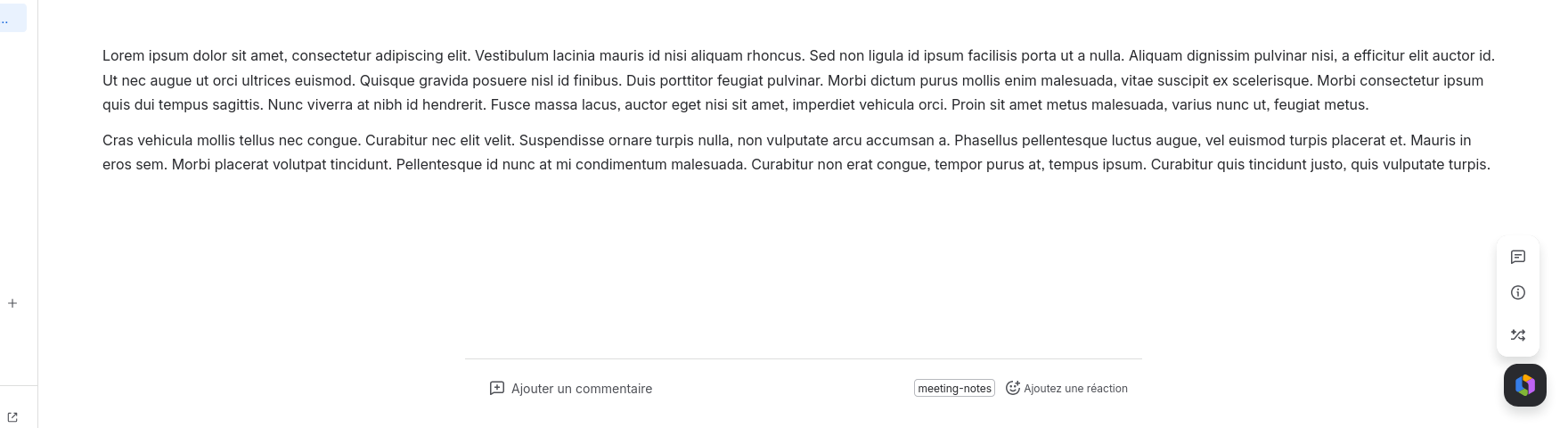
Confluence Cloud has an unfortunate habit of displaying perfectly ordinary documentation inside a narrow column surrounded by enormous empty margins. On a large monitor, this means that tables, code blocks, diagrams, and text are compressed into a fraction of the available space, while most of the screen is devoted to displaying absolutely nothing. Wide pages exist, but they are not always available, do not apply consistently, and depend on how each individual page was created.
This is one of those small absurdities of modern software: expensive subscription products increasingly treat users as guests in their own interfaces. Customization disappears, whitespace becomes a design doctrine, and somebody somewhere decides that every monitor should behave like a vertically held tablet. Confluence Cloud is sold at a premium price, yet it does not provide a simple setting to control the maximum content width.
This article showcases a glimpse of hope in a grim present era.
Firefox, my friend
Fortunately, Firefox still allows users to reclaim some control through userContent.css. A little bit of retro-engineering with ChatGPT, then redo everything because it was wrong, with the help of the web inspector gave the following solution.
First, open about:config and set the value of key toolkit.legacyUserProfileCustomizations.stylesheets to true.
Then open about:support, locate the Profile Directory, and create a chrome/userContent.css file inside it. Add the following CSS, replacing the domain with your own Atlassian instance if desired:
/* Confluence Cloud - remove nasty margins */
@-moz-document domain("atlassian.net") {
  [data-testid="view-page-main-content-container"] div, [data-testid="view-page-main-content-container"] div div, .ak-render-wrapper div, .ak-editor-content-area-region {
      margin-left: 0 !important;
      margin-right: 0 !important;
      max-width: 100% !important;
  }

  .ak-editor-content-area {
    --ak-editor-content-area-max-width: 100% !important;
  }
}
Completely restart Firefox after saving the file.
Results and disclaimer
Well, disclaimer first: this is rather quickly hacked together, and might break a set of use cases that are not mine (didn't test print, export, full-screen…). Of course you could be using another browser than Firefox (shame on you, then!). I might come back and update it, the version you find above will be the latest and greatest revision I am personally using (which could be your lamest and broken-est revision).
Since Atlassian regularly changes its frontend structure, these CSS selectors may eventually need adjustment, but that's a task for another day, perhaps for another angry dev.
Knowing that, here are some results:
Before
After
Final words
I'm by no mean a frontend web developer, so don't judge this (bad) bruteforcing of the DOM :) You should also always be wary of someone that suggest you go into about:config of your web browser, not everyone is friendly on the Internet.
Also, the irony of writing this article on a blog whose content-width is quite narrow on its own, doesn't slip past me. C'est la vie!